Microsoft Office 365
As part of being an SJCL student we provide you with an Office 365 subscription. You can download Microsoft Office for free and install it on up to 5 computers.
- Getting Started
- OneDrive
- Remote Device Wipe
- Set up Mac Mail
- Set up Mobile Device
- Word - Track Changes and Comments
Student Portal
SJCL Connect (Account Lookup)
Media Instructions for Faculty
SJCL Door Access App
SJCL Wi-Fi
San Joaquin College of Law offers FREE wireless Internet access to students, staff, faculty, and alumni. Students can access the internet using their WiFi 802.11g/n/ac device.
You assume all responsibility and risk by using this service.
- SJCL is not responsible for any hardware or software issues that may arise with individual computing devices.
- SJCL’s wireless network is based on evolving wireless technology and is not inherently secure. We therefore cannot guarantee the privacy of your data and communications while using the wireless network.
How To Connect
Faculty Student Exchange (FSE)
The SJCL Faculty Student Exchange (FSE) is where your professors will have their syllabus and assignments available for you to download as well as a place for you to upload your assignments. Each student's folder is securely protected so that only the professor and student can see it.
- Students - Uploading/Downloading Assignments
- Faculty - Uploading/Downloading Assignments
- Faculty - Grading Assignments
- Annonymize Submitted Documents (Word for Mac/Windows)
Printing Instructions
Note: Each academic year SJCL gives you $150 in printing funds. These funds do not rollover.
- Windows Instructions (PDF)
- macOS Instructions (PDF)
- macOS Driver Download
- How to print from an Android device
- Add Funds to your Print Account (PDF)
TWEN Guides
Important: If you have any issues uploading your assignments to TWEN, please contact the Helpdesk to let them know at helpdesk@sjcl.edu or your professor before the submission deadline. Only those students who notify their professor before the submission deadline will be given instructions on an alternate way of submitting their assignments. The SJCL Help Desk does not provide support for TWEN.
- Student Guide to TWEN (PDF)
- Administrators Guide to TWEN (PDF)
- Faculty - TWEN Setup (PDF)
- Faculty - TWEN Grade Book (PDF)
- Faculty - TWEN Quizzing Guide (PDF)
- Students - Anonymous Submission (PDF)
Zoom Guides
If you need assistance
- Renting Equipment and Reserving Rooms
Pat Smith – 559-326-1472 or psmith@sjcl.edu
- Technical Support (Helpdesk)
559-326-1599 or helpdesk@sjcl.edu
Recommended Laptop Configurations
- Check back for recommended laptop configurations
Supported Operating Systems
- Windows 7 & 8
- Mac OS 10.6-10.9 (Limited)
Unsupported Operating Systems
- Windows Vista
- Windows XP
- Mac OS 10.5 or Earlier (Printing on SJCL copiers is only supported on 10.6 and 10.7)
- Linux
Online Protection
With the recent rash of online security threats like the Mydoom email worm (called the worst worm in virus history), protecting yourself on the Web is more important than ever. Read on to find out how you can stay a step ahead of hackers, shield yourself from viruses, inappropriate content, spam, pop-ups, and spyware you could be inadvertently downloading onto your computer.
Desktop AntiVirus
If you download anything from the Internet, USB's or CDs, or bring outside information to your computer in any way, getting a desktop antivirus program is a must. SJCL recommends Microsoft Security Essentials (It's included with Windows 8)
Firewall
Identity theft is a growing problem, and unprotected computers online can be gold mines for hackers. We recommend installing a firewall on your computer.
Anti-Spyware
“Spyware” generally refers to computer programs that track your online activities. You may unknowingly install spyware when you download programs from the Internet, install software from disks, or open suspicious email attachments. Some spyware can change your system settings, serve pop-ups, record your surfing habits, gather personal information, or display advertisements over Web sites you visit. As a result, you could become a victim of identity theft.
For more information on securing your computer please visit: www.microsoft.com/athome/security/
ExamSoft
As an SJCL student you will be taking your tests with a program called ExamSoft. The following are the minimum requirements for a laptop. (provided by ExamSoft)
PC Requirements
- CPU Processor = 1.86Ghz Intel Core 2 Duo or greater
- RAM = highest recommended for the operating system or 2GB
- Hard Drive = highest recommended for the operating system or 1GB of free space
- Operating System = 32-bit Versions of Windows XP, 32-bit and 64-bit Versions of Windows Vista, Windows 7, and Windows 8. Only genuine English versions of Windows Operating Systems are supported.
- SofTest cannot be used on virtual operating systems such as Microsoft's Virtual Machine, Parallels or VMware, VMware Fusion or any other virtual environments.
- ExamSoft does not support Tablet devices such as Surface Pro
- Internet connection for SofTest Installation, Exam Download and Upload
- Screen Resolution must be 1024x768 or higher
- Administrator level account permissions
- Adobe Reader (Version 9, X, or 11) is required for exams containing PDF attachments
Mac Requirements
In order to use SofTest on your Apple Macbook, Macbook Air or Macbook Pro, you must have:
- CPU = Intel processor
- RAM = 2 GB
- Hard Drive = 1 GB of free disk space
- Operating System = MAC OS X 10.6 (Snow Leopard), 10.7 (Lion), 10.8 (Mountain Lion), and 10.9 (Mavericks)
- Only genuine versions of Mac Operating Systems are supported.
- Server version of Mac OS X is not supported
- We do not support OS X 10.10 (Yosemite) at this time. Look for an update on support for this OS X here in the future.
- SofTest may not be used in a virtual operating systems
- Software = Internet connection for SofTest installation, Exam Download and Upload
- Administrator account
Note: Printing on SJCL copiers is only supported on Mac OS 10.6 and 10.7
559-326-1599 | helpdesk@sjcl.edu
The Help Desk provides SJCL staff, faculty, and students with technical support for campus Wi-Fi, software, peripherals, mobile devices and many other technology related services. The Help Desk is the first step in obtaining support; whether it is for SJCL Student login password information, email setup and configurations, classroom technology questions or any other IT related issues.
Most requests for support are handled via the Help Desk via email helpdesk@sjcl.edu, telephone 559-326-1599, or walk-in during Help Desk hours. Desktop support technicians will be available within the building for requests that cannot be resolved by the Help Desk over the phone/email during normal Help Desk hours. While we're not always able to meet our goals during high volume periods, our target for most requests is an initial contact with a technical support person within 4 hours and a goal of resolution within 2 business days. In case of urgent requests, be sure to establish the priority with the Help Desk staff.
Help Desk Hours
- Monday-Thursday: 9am - 7pm
- Friday: 9am - 4pm
If you need assistance outside of regular Help Desk hours, please note that support is limited to the Help Desk email helpdesk@sjcl.edu.
Important Note: If you forget your password, please call the Help Desk. It's against SJCL policy to email passwords or other confidential information.
IT Services Provided
| Service | Windows 11 | Surface Pro | macOS 14-26 | iOS | Chromebook | Linux |
|---|---|---|---|---|---|---|
| Examsoft | Yes | Yes | Yes | No | No | No |
| Printing | Yes | Yes | Yes | No | Yes | Yes |
| Online Application | Yes | Yes | Yes | Yes | Yes | Yes |
| Microsoft SharePoint | Yes | Yes | Yes | Yes | Limited | Limited |
| System recommendations and pricing | Yes | Yes | Yes | No | No | No |
| Basic configuration (email, printers,..) | Yes | No | Yes | No | No | No |
| Configuration guides and downloads for commonly used software and features available on IT web site | Yes | Yes | Yes | No | No | No |
| Resolving common issues (SJCL applications and SJCL wireless not working properly) | Yes | Yes | Yes | Yes | Yes | Yes |
| Basic hardware upgrades (memory, disks,..) | No | No | No | No | No | No |
| Hardware diagnosis to component level | No | No | No | No | No | No |
| Onsite hardware repair (motherboards, fans,..) | No | No | No | No | No | No |
| Outsourced hardware repair recommendations | No | No | No | No | No | No |
| Onsite disk data recovery | No | No | No | No | No | No |
| Outsourced disk data recovery | No | No | No | No | No | No |
Setting up Account for First Time
- Open “Settings” and choose “Mail, Contacts, Calendars” from the list.
- Tap “Add Account”
- Choose “Other” from the list.
- Tap “Add Mail Account”
- Enter the following settings:
- Name: Your Name
- Email: Your full email address (firstname.lastname@student.sjcl.edu)
- Password: Your SJCL Email Password
- Description: Give this email account a name (Student Email)
- Then tap Save in the upper right corner.
- Select IMAP tab if it is not already selected
- Enter the following settings under “Incoming Mail Server”
- Host Name: imap.gmail.com
- Username: Use your full SJCL address (firstname.lastname@student.sjcl.edu)
- Password: Your SJCL Email Password (It should already be there but if not enter it again)
- Enter the following settings under “Outgoing Mail Server”
- Host Name: smtp.gmail.com
- Username: Use your full SJCL address (firstname.lastname@student.sjcl.edu)
- Password: Your SJCL Email Password
- Tap Next. Your iPhone will verify your settings and return you to the Settings page.
- Once verified tap “Save”
Your account has now been added and now it is recommended that you change the way it functions on the iPhone.
- Open Settings and choose Mail, Contacts, Calendars from the list.
- Tap on your newly added SJCL account
- Under IMAP tap “Account”
- Then scroll down and tap "Advanced"
- Select the “Drafts Mailbox”
- Under “On the Server” choose “Drafts” (Might already be selected)
- At the top of the screen tap “< Advanced” to return to the prior screen
- Select “Sent Mailbox”
- Under On My Phone choose “Sent.” This will automatically place a copy in your email's sent messages folder.
- At the top of the screen tap “< Advanced” to return to the prior screen
- Select “Deleted Mailbox”
- Under “On the Server” choose Trash
- At the top of the screen tap “< Advanced” to return to the prior screen
- Under “Deleted Messages” tap “Remove”
- Select “Never.” (This way the iPhone won’t try and empty your trash.)
- At the top of the screen tap “< Advanced” then “< Account” then “Done” then “< Mail” then “< Settings.”
Sync Your Email
- Go to your Mail app and open it. This should prompt the iPhone to start the sync if it hasn’t already done so.
If you have created multiple folder in your SJCL Email account
- Open your Mail app
- At the top tap “< Mailboxes”
- Under “Accounts” tap “Student Email” (or whatever you named your SJCL Student Email account). This will bring up a list of all the folders in your SJCL Email Account.
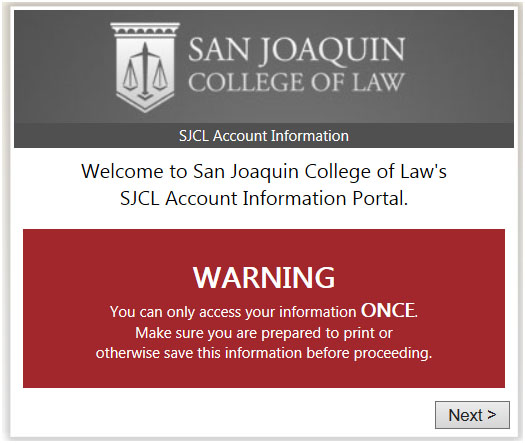
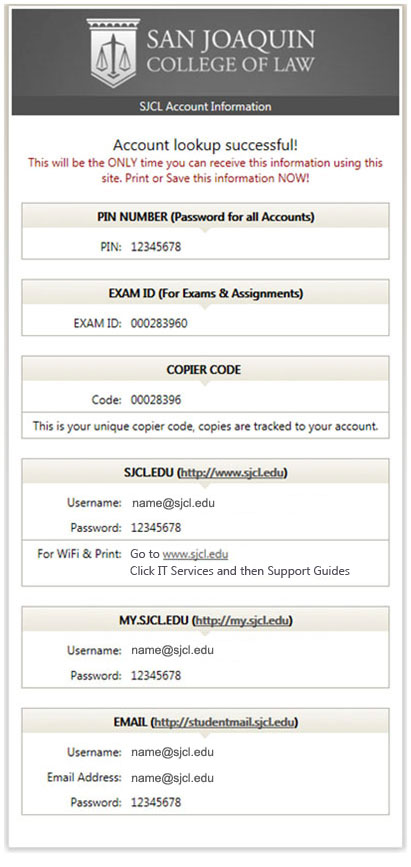
The SJCL Connect Page is where you get all your accounts. For the security of your info, you will only be allowed to run the connect page once without an account reset. If you have already used the connect page, please call the Help Desk at 559-326-1599 to request your information.
You can get to the SJCL Connect page here: sjcl.edu/connect.
Step 1
Step 2

Step 3 - Make sure to print this information.
Prior Use
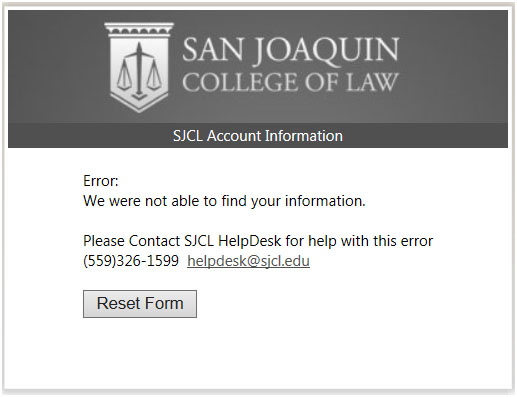
If you receive this page it means your acocunt information has already been accessed and you need to call the Help Desk. We cannot provide confidential information over email.